

Learn how to read and interpret the data saved in the Luminatens app to identify patterns and make smarter nutritional choices
Why History is a Powerful Tool
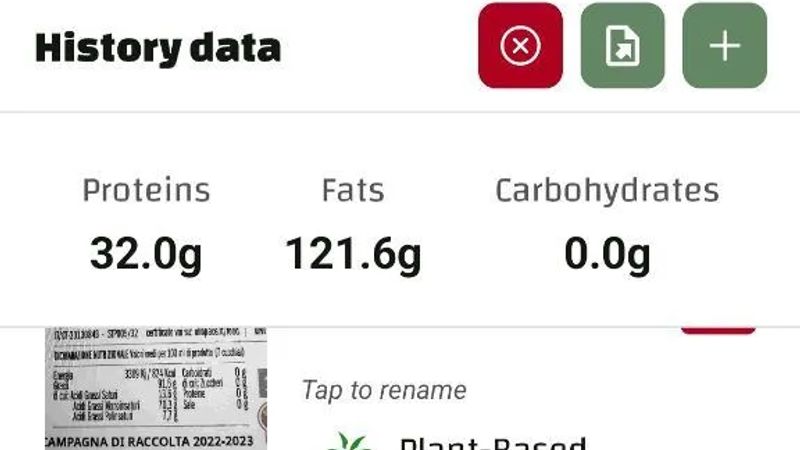
Every time you scan a product or manually enter its nutritional data, Luminatens automatically saves the result in the History section. This feature isn’t just about “remembering what you’ve scanned” — it’s a powerful resource that helps you
- Track your food choices over time
- Spot recurring nutritional habits
- Evaluate whether your diet is improving
- Identify nutrients you might be over- or under-consuming
How to Access Your History
- Open the Luminatens app
- Tap on the“History”icon in the bottom menu
- You’ll see a chronological list of all the scanned or logged foods, each showing its name, category, and final score (0–100)
You can filter the list by date, category, diet type, or use the search bar for specific keywords
How to Read the Saved Data
Each scanned item includes
- Final Score (color-coded from 0 to 100)
- Nutrient Breakdown with visual indicators for each nutrient: 🔴Limit🟡Moderate🟢Optimal
- Custom Notes if you added any during manual entry
- Diet Type selected at the time of the scan
Tap any item to view all the details
How to Use History to Improve Your Diet
Spot recurring weaknesses
Are you scanning lots of items high in sugar or salt (🔴Limit)? You may be relying too much on processed snacks or ready meals. ➡️Goal Reduce frequency and look for healthier alternatives
Identify your nutritional allies
Which foods scored above 80? These are top performers worth including more often. ➡️Goal Build a personal go-to list of high-scoring items
Track weekly or monthly trends
Count how many items you consumed that fall into the Optimal Moderate and Limit zones. ➡️Goal Increase your ratio of green (Optimal) foods over time
Balance dietary missteps
Did you overindulge one day? Use History to check whether your next few meals helped offset that. ➡️Goal Practice flexible balance instead of guilt
Export Your History for Deeper Analysis
- Free users can export history in a simple TXT format
- Basic and Pro users can export in CSV format perfect for Excel or Google Sheets
This allows you to
- Build charts tracking score averages
- Filter foods by critical nutrients
- Share your trends with a doctor or nutritionist
Pro Tips for Using History
- Add personal notes to highlight key items (e.g., “filling,” “too sweet,” “will buy again”)
- Check monthly analytics to review your average score and number of items analyzed
- Enable automatic comparisons to track month-over-month improvements
Conclusion
The History feature in Luminatens is more than just a log — it’s a mirror of your food habits. Reviewing it weekly helps you make better choices, recognize your strengths, and build a smarter diet, one food at a time
Luminatens: scan, analyze, improve
🔍 FoodReveal helps you decode nutrition labels beyond marketing. Available for Android and iOS.